How to Make an AI Music Video From a Photo and a Song
A music video built from a single portrait and a single song can look intentional rather than improvised, if you plan it like a film. By the end of this guide you will be able to break a song into sections, design a shot plan around them, generate clips that stay visually consistent, and cut them to the beat into a finished export.
Choose the song and mark its sections
Start with the audio, because everything else is built on it. Use a song you own the rights to, such as your own recording, or music you have a licence or written permission to use. Do not drop a popular track into a video you plan to publish and hope for the best. Platforms can remove or mute videos that use music you cannot document.
Listen to the full track at least twice with a notepad. Write down the timestamp where each section begins: intro, verse one, pre-chorus, chorus, verse two, bridge, final chorus, outro. Note where the energy rises, where it drops, and where there is a long instrumental stretch. Those moments are where your visuals will change gear.
Also note the tempo in beats per minute if your editor shows it, or simply tap along and count. A song at around 100 beats per minute has a beat roughly every 0.6 seconds, which tells you how fast cuts can feel natural. Slower songs usually reward longer, floating shots. Faster songs can handle quick cuts, but only if the clips themselves are strong.
Define one visual concept before you generate anything
The most common mistake is generating a pile of pretty clips with no connecting idea. Write a single sentence that describes the video, for example: a gospel-pop singer walks through one evening in Ibadan, from rooftop dusk to a candlelit living room, with warm amber tones throughout.
Then lock three decisions and write them down.
- Palette: choose two or three dominant colours, such as amber, deep green and cream.
- Locations: pick three or four settings at most. Fewer settings make consistency far easier.
- Wardrobe: choose one outfit, described precisely, or one change at a key moment such as the bridge.
This constraint is a creative advantage. Strong music videos usually repeat a small set of images in new ways rather than showing something different every four seconds. If you need help turning a concept into a layered prompt, the walkthrough in how to write AI prompts for cinematic movie scenes covers the building blocks.
Prepare a portrait reference that works
Your photo is the anchor for the whole project, so choose it carefully. Use a picture of yourself, or of someone who has clearly agreed to appear and understands the video may be shared. Never use a photo of another person without their permission, and avoid using the likeness of public figures or anyone who has not consented.
A good reference has these qualities:
- The face is sharp, evenly lit and unobstructed by sunglasses, heavy shadow or a hand.
- The head and shoulders fill a decent part of the frame, with a plain or simple background.
- The expression is neutral or lightly engaged, which gives your generator room to animate emotion.
- The image is high resolution and not heavily filtered.
Write a short character description from the photo: hair, skin tone, age range, clothing, accessories. Paste that same wording into every prompt. The reasoning behind this habit is explained in AI prompts for creating consistent movie characters, and it matters even more when the photo is your only reference.
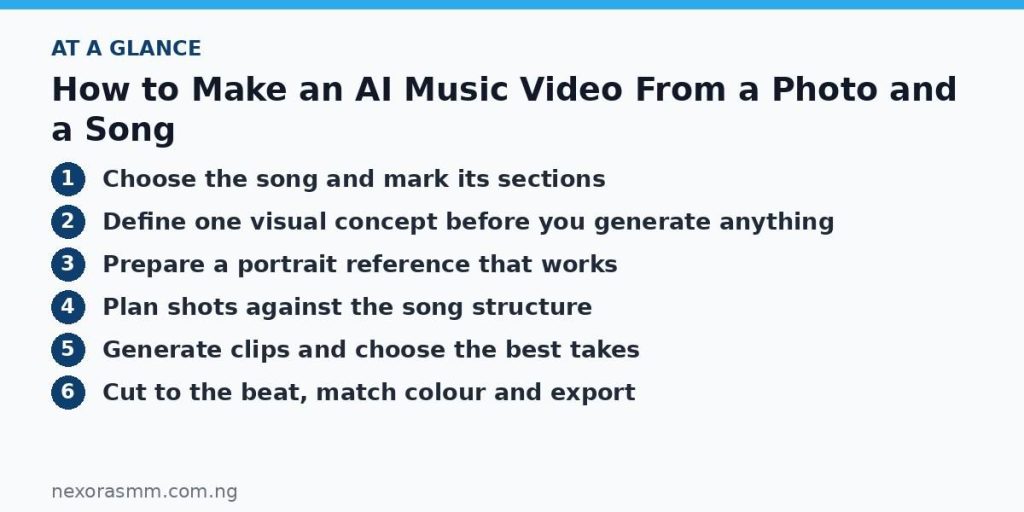
Plan shots against the song structure
Now map shots to sections. As a rule, quieter sections get wider, slower, more atmospheric shots. Choruses get closer framing, more movement and your strongest images. Most video generators produce short clips, often a few seconds each, so plan for many small pieces rather than one long take.
Here is a sample plan for a three-minute song. Your timings will differ, so adjust them to your own markers.
| Section | Approx. time | Shots | Visual idea |
|---|---|---|---|
| Intro | 0:00 to 0:15 | 2 to 3 | Empty rooftop at dusk, slow push toward the singer’s back |
| Verse 1 | 0:15 to 0:45 | 6 to 8 | Medium and close shots, walking, looking out over the neighbourhood |
| Chorus 1 | 0:45 to 1:15 | 8 to 10 | Singer facing camera, warm backlight, wider movement |
| Verse 2 | 1:15 to 1:45 | 6 to 8 | Indoor living room, candles, hands and small details |
| Bridge | 1:45 to 2:15 | 3 to 4 | Stillness, one long slow shot, colours cool slightly |
| Final chorus | 2:15 to 2:45 | 10 to 12 | Fastest cutting, rooftop and room images combined |
| Outro | 2:45 to 3:00 | 2 | Pull-out to the empty rooftop, mirroring the intro |
Mirroring the opening in the closing shot is a simple way to make the whole piece feel designed. Choosing which moves to use for each section is easier with a menu, and 10 camera movements to include in AI video prompts lists options with their emotional effect.
Generate clips and choose the best takes
Generate each shot several times. Results vary between tools and between runs, so treat the first output as a draft. Keep prompts short in action: one subject, one movement, one camera move.
Example prompt: Close-up of a young woman with short natural hair and a mustard-yellow headwrap, singing softly on a Lagos rooftop at dusk, warm amber backlight, distant generator lights flickering in the haze, slow push-in, shallow depth of field, calm and hopeful mood.
Example prompt: Medium shot of a man in a green agbada seated in a Kano courtyard, tapping his knee to a slow rhythm, late afternoon sun on mud-brick walls, gentle handheld movement, warm earth tones.
When reviewing takes, reject any clip where the face changes noticeably, the mouth moves strangely against your lyrics, or the background warps. Name your files by section and shot number, such as C1-04-take3, so the edit stays organised.
Cut to the beat, match colour and export
Import the song first and lay it on the timeline. Add markers on the downbeats of each section, then place clips so that cuts land on or just before a beat. Cutting a few frames early often feels tighter than landing exactly on the beat. Use longer holds in the verses and let the choruses breathe with faster rhythm.
Because clips come from separate generations, their colour will not match perfectly. Apply the same basic colour adjustment across the whole timeline, then fine-tune individual clips for brightness and warmth. A light grain layer over everything can help unify the footage. Use dissolves sparingly, and use a flash or hard cut on strong beats.
Finally, watch the whole video with headphones and again on a phone speaker. Check that lyrics and visuals do not clash, that no flawed frames slipped through, and that the audio level is not clipping. Export at the resolution and aspect ratio of the platform you are targeting, and keep a master copy. If you publish, say clearly that the visuals were AI generated and credit the musician.
Key takeaways
- Use only your own photo or one you have permission to use, and music you own or have licensed.
- Mark the song’s sections and plan shots against them before generating anything.
- Limit locations, palette and wardrobe, and repeat the same character description in every prompt.
- Generate multiple takes per shot, then cut to the beat and apply one consistent colour treatment.
Educational content only — not financial advice. Income and savings results vary and are never guaranteed. How we write
Enjoyed this story?
Get the best stories delivered weekly.