How to Code a Support and Resistance Indicator for MT5
Last checked: 12 October 2026. This guide draws on the MQL5 reference for iHighest, iLowest and chart objects. Code is a teaching example; compile and test it on a demo account.
Support and resistance are price areas where the market has previously stopped or turned. Traders draw them by hand, but a small MQL5 indicator can find them automatically and keep the chart tidy. This guide builds an indicator that detects swing highs and swing lows and draws horizontal lines at the most recent ones.
What counts as a level
A swing high is a bar whose high is higher than the highs of a few bars on each side. A swing low is the opposite. This is called a fractal in many trading books. The number of bars you look at on each side, often called strength, decides how significant the level is. A strength of 2 finds many small levels, while 5 finds fewer, more important ones.
The delay you cannot avoid
To confirm a swing high with strength 3, you must wait until three more bars have closed after it. That means the level is always confirmed late. This is not a flaw in the code. It is the honest cost of avoiding repainting: an indicator that marks a high on the same bar it forms must later erase it if price keeps rising. Community discussion on MQL5.com draws exactly this line between indicators that redraw past values and those that only change the live bar.
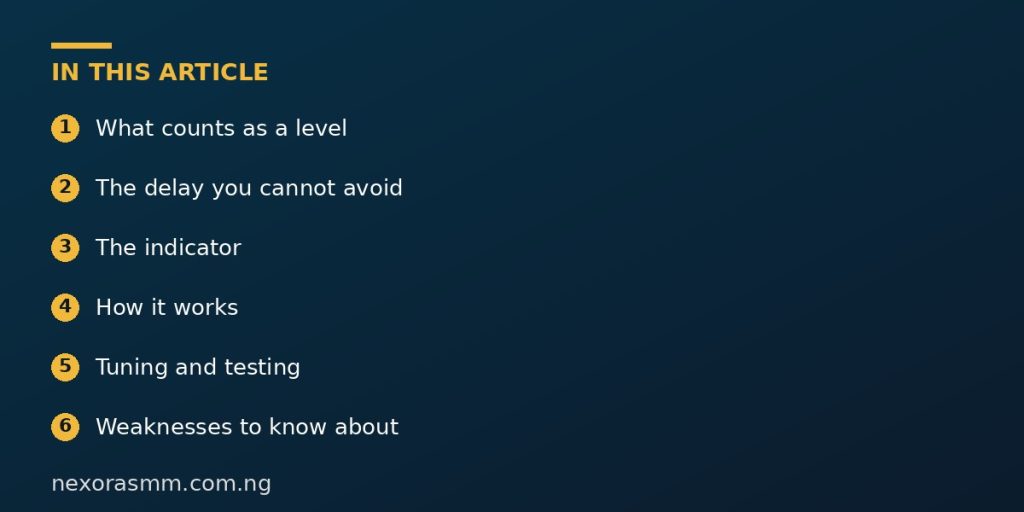
The indicator
#property indicator_chart_window
#property indicator_buffers 0
#property indicator_plots   0

input int  InpStrength   = 3;     // bars on each side
input int  InpLookback   = 300;   // bars to scan
input int  InpMaxLevels  = 6;     // lines per side
input color InpResColor  = clrTomato;
input color InpSupColor  = clrLimeGreen;

string PFX = "SR_";

void ClearLines()
  {
   ObjectsDeleteAll(0, PFX);
  }

int OnInit() { return(INIT_SUCCEEDED); }
void OnDeinit(const int reason) { ClearLines(); }

int OnCalculate(const int rates_total, const int prev_calculated,
                const datetime &time[], const double &open[],
                const double &high[], const double &low[],
                const double &close[], const long &tick_volume[],
                const long &volume[], const int &spread[])
  {
   int s = InpStrength;
   if(rates_total < InpLookback + 2 * s + 1) return(0);

   // redraw only when a new bar appears
   static datetime lastBar = 0;
   if(time[rates_total - 1] == lastBar) return(rates_total);
   lastBar = time[rates_total - 1];

   ClearLines();
   int resCount = 0, supCount = 0;
   int newest = rates_total - 2 - s;           // last bar that can be confirmed
   int oldest = MathMax(s, rates_total - InpLookback);

   for(int i = newest; i >= oldest; i--)
     {
      bool isHigh = true, isLow = true;
      for(int k = 1; k <= s; k++)
        {
         if(high[i] <= high[i - k] || high[i] <= high[i + k]) isHigh = false;
         if(low[i]  >= low[i - k]  || low[i]  >= low[i + k])  isLow  = false;
        }
      if(isHigh && resCount < InpMaxLevels)
        {
         string n = PFX + "R" + IntegerToString(resCount++);
         ObjectCreate(0, n, OBJ_HLINE, 0, 0, high[i]);
         ObjectSetInteger(0, n, OBJPROP_COLOR, InpResColor);
         ObjectSetInteger(0, n, OBJPROP_STYLE, STYLE_DOT);
        }
      if(isLow && supCount < InpMaxLevels)
        {
         string n = PFX + "S" + IntegerToString(supCount++);
         ObjectCreate(0, n, OBJ_HLINE, 0, 0, low[i]);
         ObjectSetInteger(0, n, OBJPROP_COLOR, InpSupColor);
         ObjectSetInteger(0, n, OBJPROP_STYLE, STYLE_DOT);
        }
     }
   ChartRedraw();
   return(rates_total);
  }
How it works
The loop starts at the newest bar that has enough bars after it to be confirmed and walks backwards through history. For each candidate it compares the high with the highs of the neighbours on both sides. If any neighbour is as high or higher, the candidate fails. Lines are named with a prefix so that ObjectsDeleteAll can remove only this indicator’s objects and not your own drawings.
The code redraws only when a new bar opens, using a static variable that remembers the last bar time. Without that check the objects would be deleted and recreated on every tick, which makes the chart flicker and wastes processing.
Tuning and testing
- Start with strength 3 on the H1 chart and compare the lines with levels you would draw by hand.
- Increase strength if the chart is crowded. Decrease it if you miss obvious turns.
- Check that a line, once drawn, does not move when new bars arrive. It may disappear when it falls out of the lookback window, but its price should never change.
Weaknesses to know about
- Levels are single prices, but in practice support and resistance are zones. You may want to draw a band using a fraction of ATR.
- Old levels can be broken. The code does not remove a resistance line after price closes above it.
- Nothing here predicts whether a level will hold.
Installing it step by step
- In MetaEditor choose File, New, Custom Indicator and name it SwingLevels. Replace the generated body with the code above.
- Press F7. A successful build reports zero errors.
- Attach it to an H1 chart. Up to six red dotted lines mark recent swing highs and up to six green dotted lines mark recent swing lows.
- Open the Inputs tab to change strength, lookback and colours.
Turning single lines into zones
Real support and resistance behave more like bands than razor-thin lines. Price often stops a little before or pushes a little through a level. A practical improvement is to draw a rectangle instead of a line: take the swing price as the centre and extend it up and down by a fraction of ATR, for example one quarter. Use ObjectCreate with OBJ_RECTANGLE and two price-time points, and set OBJPROP_BACK to true so the rectangle sits behind the candles. Zones also make it easier to see when several nearby swings agree, which is the usual sign of an important area.
Removing broken levels
A level that price has closed through several times is no longer doing its job. You can add a simple rule: after finding a swing high, scan the bars that followed it, and skip the level if any later candle closed above it. Do the mirror test for swing lows. This keeps the chart focused on levels that are still intact. Remember to explain the rule in your notes so you do not forget why a line you expected is missing.
What we could not confirm
- Which strength value works best. It depends on pair, timeframe and style.
- Any statistical edge from trading these levels.
Frequently asked questions
Why do my levels appear a few candles late? Because a swing needs bars on both sides to be confirmed.
Can I use rectangles instead of lines? Yes, OBJ_RECTANGLE with a price range gives a zone.
Key takeaways
Define a swing by comparing neighbouring bars, accept the confirmation delay, redraw only on new bars and give your objects a prefix so cleanup is safe.
Sources checked
- MQL5 Reference, ObjectCreate, ObjectsDeleteAll and OBJ_HLINE, mql5.com
- MQL5.com forum discussion on repainting versus live-bar updates
Educational content only — not financial advice. Income and savings results vary and are never guaranteed. How we write
Enjoyed this story?
Get the best stories delivered weekly.